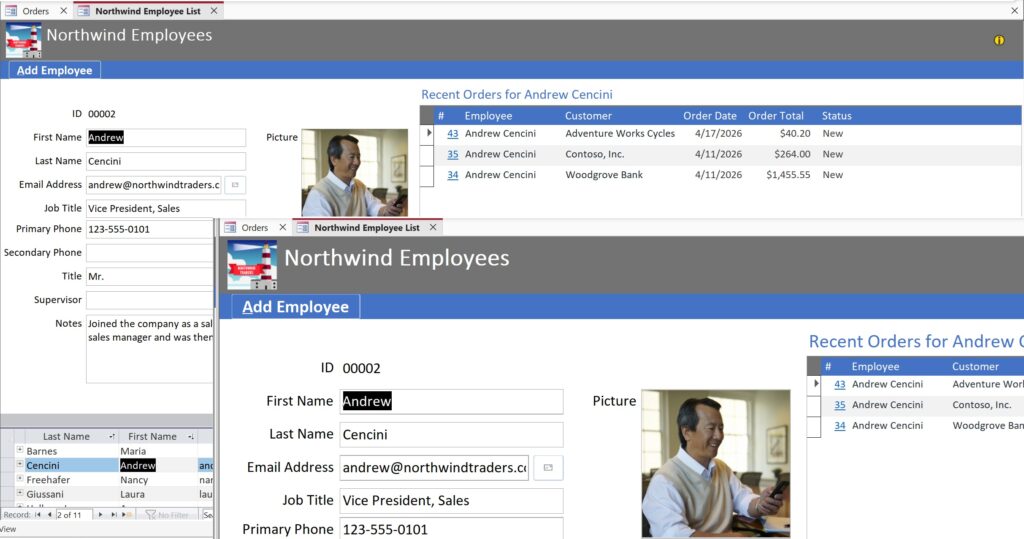
A Closer Look at the Microsoft Access Zoom Slider
Microsoft Access has long been a powerful tool for building and managing databases, but historically it lagged behind other Office apps when it came to simple viewing controls. One small but meaningful improvement that has changed day‑to‑day usability is the Zoom Slider – a feature that finally brings Access in line with Word, Excel, and PowerPoint.
While it may seem minor at first glance, the Zoom Slider has a real impact on accessibility, productivity, and comfort – especially for users who spend hours working with forms, datasheets, and queries.
What Is the Zoom Slider in Microsoft Access?
The Zoom Slider is a visual control located in the status bar at the bottom‑right corner of the Access window. It allows you to zoom in or out of supported Access objects – such as forms, tables, and queries – when they are opened in Form View or Datasheet View. For full documentation on this new feature take a look at this Microsoft Support article.
By dragging the slider or clicking the plus and minus buttons, users can quickly change magnification without opening dialog boxes or adjusting system‑wide display settings.

This functionality mirrors the zoom controls that Office users have relied on for years in other applications, making Access feel more consistent with the rest of the Microsoft 365 ecosystem.
Why the Zoom Slider Matters
Improved Readability
Database objects often contain dense information – long field names, compact columns, or complex layouts. The Zoom Slider lets you enlarge content instantly, reducing eye strain and making it easier to review details in large datasets or intricate forms.
Better Accessibility
For users with visual impairments or those working on high‑resolution displays, fixed sizing can be a real barrier. The Zoom Slider supports magnification across a wide range of percentages and is keyboard accessible, reinforcing Microsoft’s broader accessibility goals for its productivity tools.
Faster Workflow Adjustments
Before the Zoom Slider, users often relied on:
- Opening the Zoom dialog
- Adjusting Windows display scaling
- Redesigning forms just to see content more clearly
Now, zooming is immediate and reversible, letting users adapt their view on the fly without interrupting their workflow.
How the Zoom Slider Works
When working in supported views, you can adjust zoom in several documented ways: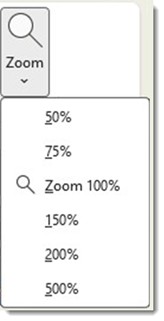
- Drag the Zoom Slider in the status bar to your desired percentage
- Click the + or – buttons for gradual incremental changes
- Use keyboard shortcuts:
- Ctrl + Alt + Plus (+) to zoom in
- Ctrl + Alt + Minus (-) to zoom out
- Ctrl + Alt + 0 to return to 100% magnification
- Ctrl + Mouse wheel
Access also includes preset zoom levels (such as 200%, 150%, or 75%) available from the Zoom command on the Home tab when in Form or Datasheet View.
A Note on Zoom Persistence
One important detail for users to understand is that Access does not automatically persist custom zoom levels per object. However, Access does provide a Default Zoom setting at the database level, configurable through File > Options > Current Database, allowing administrators and developers to define a starting zoom level for users.
Part of a Broader Usability Push
The Zoom Slider was introduced as part of Microsoft’s ongoing effort to modernize Access and improve usability. The feature aligns Access with long‑standing capabilities in other Office applications and emphasizes inclusivity through keyboard access and flexible magnification ranges.
While opinions vary in the Access community about development priorities, there’s little debate that the Zoom Slider removes a long‑standing friction point for everyday users.
Final Thoughts
The Microsoft Access Zoom Slider is a classic example of a “small feature, big impact” improvement. It doesn’t change how databases are designed or how data is stored – but it makes working with Access more comfortable, more accessible, and more consistent with the rest of Microsoft 365.
For anyone who spends significant time in datasheets or forms, the Zoom Slider quickly becomes one of those features you don’t think about – until you open an older version of Access and realize how much you miss it.
A quick disclaimer note
When reading this article and trying the Microsoft Access Zoom Slider out for yourself, keep in mind that at the time of this writing, the feature has only been released to Office 365 Beta and Current Preview channels. It is anticipated to release to the subsequent channels in the normal cadence and should hit the Current channel sometime in May. As always, Beta versions are often slightly buggy. For example, at the moment, the documentation from Microsoft does not list the correct shortcuts (listed here).